
 Pokemon Card Scanner
 Live Wallpapers Unlimited




Mastering Your Time: A Comprehensive Guide on How to Set Your Fitbit Watch Time in 2025
Mastering Your Time: A Comprehensive Guide on How to Set Your Fitbit Watch Time in 2025
In today's fast-paced world, an accurate timepiece is more than a convenience; it's a necessity. Your Fitbit watch is your daily companion, tracking your steps, sleep, and workouts. But what happens when its time is off? Knowing how to set your Fitbit watch time correctly ensures all your data is precise. This guide will walk you through everything you need to know about keeping your Fitbit perfectly synchronized in 2025.
A correctly set time on your Fitbit is crucial for accurate activity tracking. It impacts your sleep stages, workout logs, and daily goal achievements. Let's dive into the simple steps to ensure your device is always on schedule. We'll cover the primary methods, common issues, and advanced tips for maintaining perfect time.
Understanding How Fitbit Time Synchronization Works
Unlike traditional watches, you can't manually set the time directly on your Fitbit device. Your Fitbit automatically syncs its time with the time on the device it's paired with. This is usually your smartphone, tablet, or computer. The Fitbit app acts as the bridge, ensuring your watch reflects the correct time zone and current time.
This automatic process is designed for convenience. It means your Fitbit should update its time whenever it syncs. This happens regularly throughout the day. If your phone's time is correct, your Fitbit's time should also be correct. This is the fundamental principle behind how to set your Fitbit watch time.
Why Is Your Fitbit Watch Time Incorrect?
Sometimes, your Fitbit's time might be wrong. This can be frustrating, especially when you rely on it. Several common reasons can cause this discrepancy. Understanding them helps in quickly resolving the issue.
- Failed Sync: The most common reason. If your Fitbit hasn't synced with your phone recently, it won't update its time.
- Incorrect Phone Time: If your phone's time or time zone is wrong, your Fitbit will inherit that incorrect information.
- App Glitch: Sometimes the Fitbit app itself might encounter a temporary bug.
- Outdated App/Firmware: Older versions of the app or Fitbit's firmware can lead to synchronization problems.
- Bluetooth Issues: A poor or disconnected Bluetooth link between your Fitbit and phone prevents data transfer, including time updates.
- Travel: Crossing time zones without a proper sync can leave your Fitbit on the old time.
Don't worry if you encounter these issues. Fixing them is usually straightforward. The key is to ensure consistent and successful synchronization. This is central to learning how to set your Fitbit watch time effectively.
Step-by-Step: How to Set Your Fitbit Watch Time Using the Mobile App
The Fitbit mobile app is your primary tool for managing your device. This includes adjusting its time settings. Follow these steps carefully to ensure your Fitbit displays the correct time.
Step 1: Verify Your Phone's Time and Time Zone
Your Fitbit relies on your phone's time. Before doing anything else, check your smartphone's time and time zone settings. Make sure they are accurate. Most phones allow automatic time and time zone detection. This is usually the best setting to use.
- For iPhone: Go to Settings > General > Date & Time. Ensure 'Set Automatically' is toggled on.
- For Android: Go to Settings > System > Date & Time (or similar path depending on your phone model). Ensure 'Set time automatically' and 'Set time zone automatically' are enabled.
Once your phone's time is correct, your Fitbit has the right source to sync from. This is the crucial first step in how to set your Fitbit watch time.
Step 2: Open the Fitbit App and Initiate a Sync
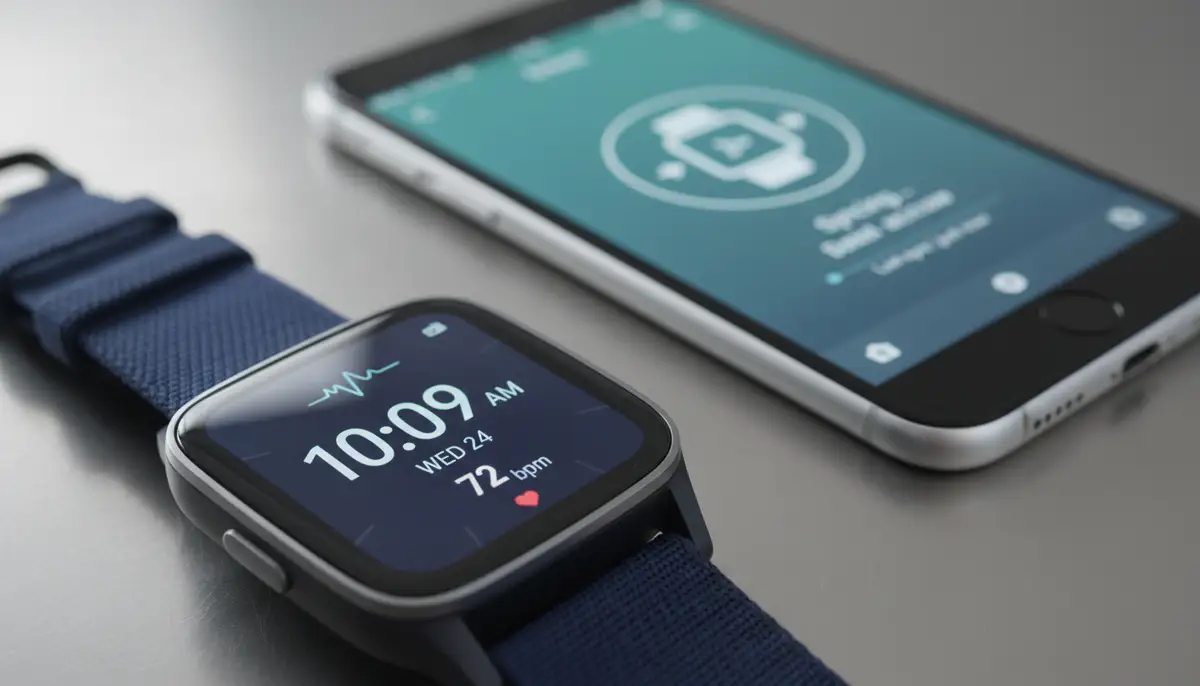
Launch the Fitbit app on your smartphone or tablet. The app typically tries to sync automatically when opened. If it doesn't, you can force a sync. On the 'Today' tab, pull down from the top of the screen. This action will refresh the data and initiate a sync. You'll see a 'Syncing...' message at the top.
A successful sync should update your Fitbit's time. If it still doesn't, proceed to the next step. Sometimes, deeper settings need adjustment.
Step 3: Adjust Time Zone Settings within the Fitbit App
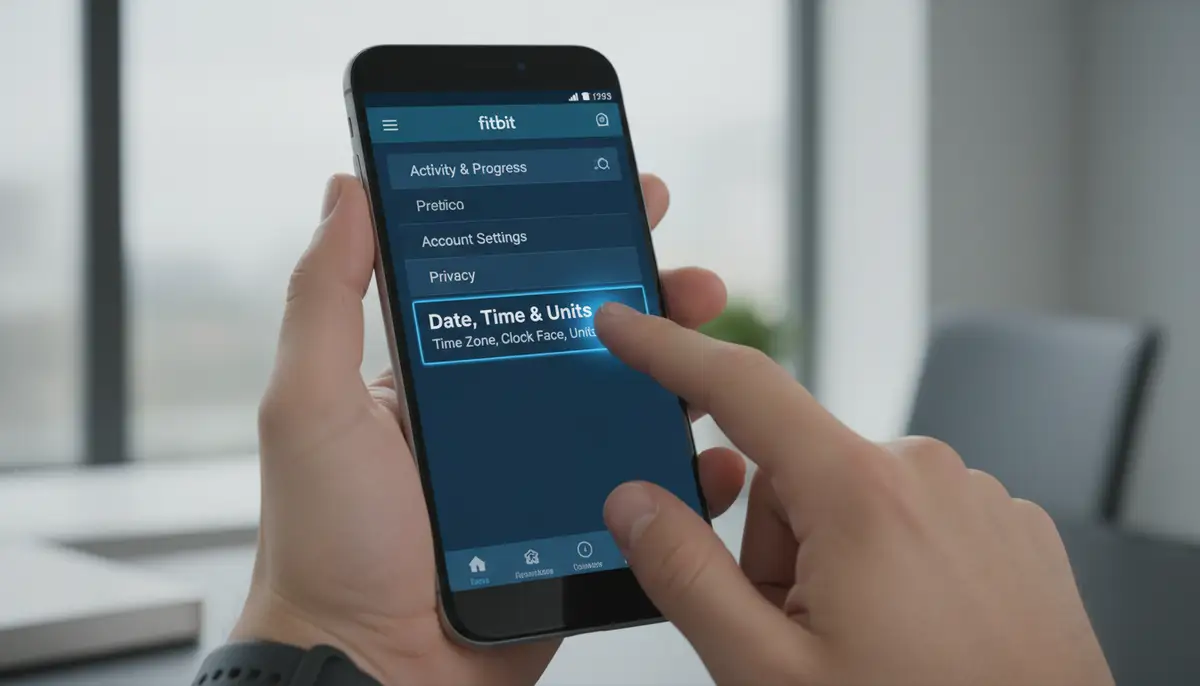
Even if your phone's time is correct, the Fitbit app might have a different time zone setting. This can happen if you've traveled or if the setting was manually changed. Here's how to check and adjust it:
- From the 'Today' tab in the Fitbit app, tap your profile picture in the top-left corner.
- Scroll down and tap 'App Settings'.
- Tap 'Date, Time & Units'.
- You will see 'Time Zone'. Tap on it.
- Ensure 'Set Automatically' is toggled on. If it's off, turn it on. This will use your phone's time zone.
- If you need to manually set it (e.g., if you're in a unique time zone or prefer a specific one), toggle 'Set Automatically' off. Then select your desired time zone from the list.
After making changes, force another sync as described in Step 2. This is a crucial part of how to set your Fitbit watch time. For more detailed instructions on setting the time via the mobile app, you can refer to this comprehensive guide on how to set the time on the Fitbit mobile app.
Step 4: Confirm 12-Hour or 24-Hour Format
While not directly about setting the correct time, choosing your preferred time format is important. You can select between a 12-hour (AM/PM) or 24-hour (military) clock. This setting is also found within the 'Date, Time & Units' section of the Fitbit app. Simply toggle the '24-hour clock' option on or off based on your preference.
If you're looking for a visual guide on how to switch to military time, this video provides clear instructions:
. Remember to sync your device after changing this setting for it to take effect on your watch face.Troubleshooting Common Issues When You Can't Set Your Fitbit Watch Time
Sometimes, the standard steps aren't enough. If your Fitbit's time is still incorrect, don't despair. Here are some advanced troubleshooting tips to help you resolve persistent issues. These steps are vital for truly understanding how to set your Fitbit watch time.
Check Bluetooth Connection
Bluetooth is the lifeline between your phone and Fitbit. Ensure Bluetooth is enabled on your phone. Also, make sure your Fitbit is listed as a connected device. If not, try unpairing and re-pairing your Fitbit. Go to your phone's Bluetooth settings, forget the Fitbit device, then re-pair it through the Fitbit app.
Restart Your Fitbit Device
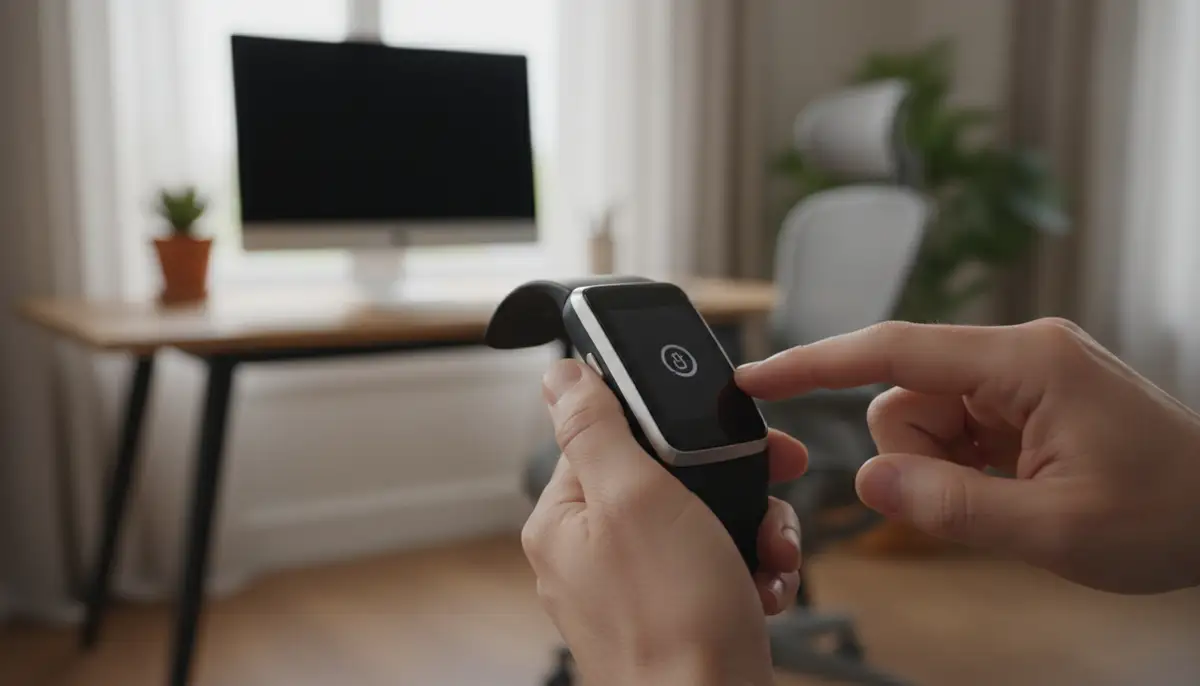
A simple restart can often fix minor software glitches. The method to restart varies by Fitbit model. For most, you connect your device to the charging cable. Then, press and hold the button(s) on your Fitbit for several seconds until you see the Fitbit logo. This soft reset often resolves sync issues.
Restart Your Smartphone
Just like your Fitbit, your phone can benefit from a fresh start. Restart your smartphone completely. This clears temporary data and can resolve background app conflicts. After restarting, open the Fitbit app and try to sync again.
Update Fitbit App and Device Firmware
Outdated software is a common culprit for sync problems. Check your phone's app store for any available updates for the Fitbit app. Also, open the Fitbit app, tap your profile picture, and then tap your device image. Look for a banner indicating a firmware update is available. Install any updates promptly. This is a critical step in maintaining proper functionality and knowing how to set your Fitbit watch time.
Check App Permissions
Ensure the Fitbit app has all necessary permissions on your phone. This includes location services (especially for automatic time zone detection) and background app refresh. Without these, the app might struggle to sync or detect your correct time zone. You can find these settings in your phone's main 'Settings' menu under 'Apps' or 'Application Manager'.
Reinstall the Fitbit App
As a last resort for app-related issues, try uninstalling and then reinstalling the Fitbit app. This can clear corrupted data or resolve deep-seated software conflicts. Remember to log back in with your Fitbit account after reinstallation.
Dealing with Time Zones and Travel
Traveling across time zones is a frequent cause of incorrect Fitbit time. Fortunately, Fitbit is designed to handle this automatically. When you enter a new time zone, your phone should automatically update its time. Once your phone's time is correct, open the Fitbit app to force a sync. Your Fitbit should then update to the new local time.
If it doesn't, revisit the 'Date, Time & Units' section in the app settings. Ensure 'Set Automatically' for the time zone is enabled. This will prompt your Fitbit to adopt your phone's current time zone. For more information on time zone settings, Google's Fitbit support page offers additional guidance on managing date, time, and units in the Fitbit app.
Understanding Time Zone Behavior on Different Fitbit Models
While the core principle remains the same, some older Fitbit models might be more sensitive to sync issues after a time zone change. Modern devices like the Sense or Versa series are generally more seamless. However, even with the latest models, a manual sync after landing is always a good practice to ensure you know how to set your Fitbit watch time.
When All Else Fails: Factory Reset Your Fitbit
A factory reset should be a last resort. It erases all data from your Fitbit and returns it to its original factory settings. This can resolve deep software issues that prevent proper syncing. Be aware that you will lose any unsynced data and will need to set up your Fitbit again from scratch.
- Backup Data: Ensure your Fitbit has synced all its data to the app before performing a factory reset.
- Check Model-Specific Instructions: The factory reset process varies significantly by Fitbit model. Search 'factory reset [your Fitbit model]' online for precise steps. (e.g., Fitbit Charge 5 factory reset).
- Re-Pair: After the reset, you will need to re-pair your Fitbit with your phone through the Fitbit app, just like when you first got it.
This is a drastic step, but it often fixes stubborn problems. After a factory reset, your Fitbit will be like new. It will then require you to go through the initial setup, which includes synchronizing the time. This ensures you fully understand how to set your Fitbit watch time from a fresh start.
Maintaining Accurate Time: Best Practices
To avoid future time discrepancies, adopt these best practices. They will help keep your Fitbit running smoothly and accurately. Consistent maintenance is key to a reliable fitness tracker.
- Regular Syncs: Make it a habit to open your Fitbit app daily. This ensures regular data transfer and time updates.
- Keep App Updated: Always install the latest version of the Fitbit app and your device's firmware.
- Stable Bluetooth: Ensure your phone's Bluetooth is always on when you want your Fitbit to sync.
- Charge Regularly: A low battery can sometimes interfere with syncing capabilities.
- Check Phone Settings: Periodically verify your phone's date and time settings, especially if you travel.
Following these simple tips will greatly reduce the chances of your Fitbit displaying the wrong time. This proactive approach is the best way to manage how to set your Fitbit watch time.
Beyond Time: Customizing Your Fitbit Experience
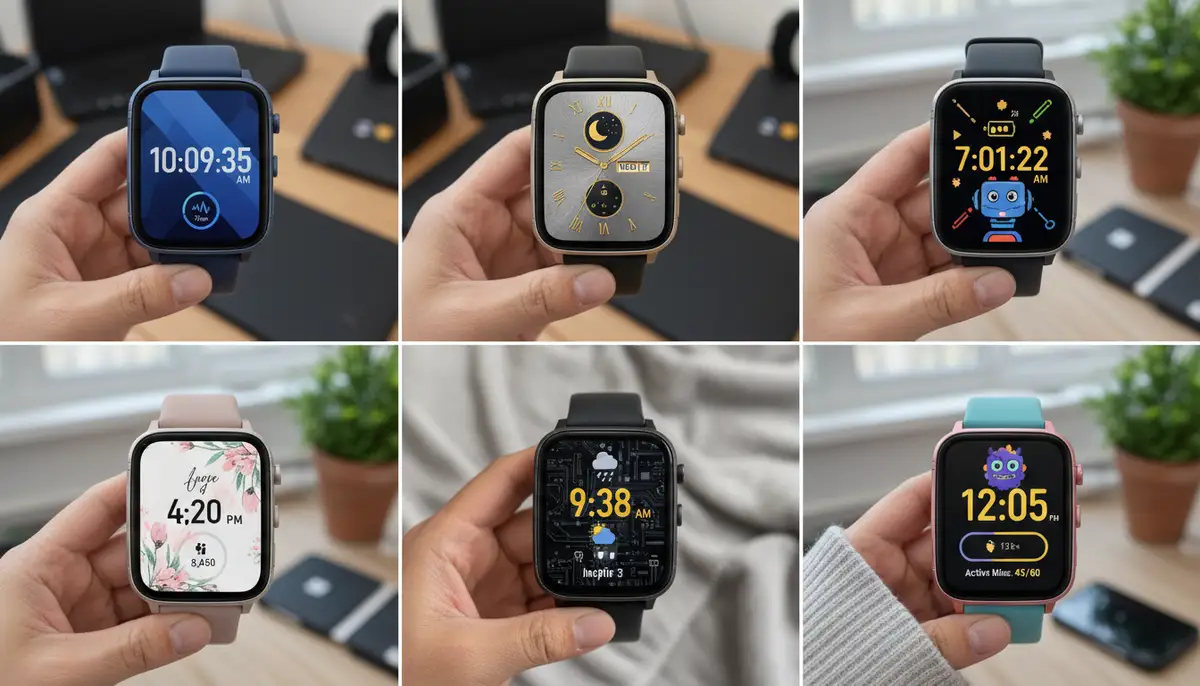
Once your time is perfectly set, you might want to personalize your Fitbit further. Many users enjoy customizing their watch faces. This allows you to display information important to you, like steps, heart rate, or weather, in a style you love. While Fitbit offers its own gallery, the world of custom watch faces is vast.
For those interested in exploring beyond Fitbit's native options, platforms exist for creating unique designs. Companies like Pujie Black, buddywatch.app, and amoledwatchfaces.com provide extensive libraries or tools for designing custom watch faces for various smartwatches. However, for Apple Watch and Wear OS users, WatchMaker stands out as a leading repository. We offer thousands of watch faces, allowing you to truly create your own watch faces.
Customizing your watch face is a great way to make your device truly yours. It adds a personal touch to your daily routine. And remember, no matter how intricate your watch face, knowing how to set your Fitbit watch time remains fundamental to its utility. If you're also interested in other types of timepieces, we have a comprehensive guide on how to set chrono watch and another on how to set mechanical watch.
Frequently Asked Questions About Setting Fitbit Watch Time
Here are answers to some common questions regarding your Fitbit's time settings. These address specific scenarios users often encounter when trying to set their Fitbit watch time.
| Question | Answer |
|---|---|
| Can I manually set the time on my Fitbit? | No, you cannot manually set the time directly on your Fitbit device. It syncs with the time on your paired smartphone or computer. |
| My Fitbit time is off by an hour. What should I do? | This usually indicates a time zone issue. Check your phone's time zone settings and the Fitbit app's 'Set Automatically' time zone option. Then, force a sync. |
| Why does my Fitbit time change after I travel? | Your Fitbit should automatically update its time when it syncs with your phone in a new time zone. If it doesn't, ensure your phone's time zone is correct and force a sync. |
| How often does my Fitbit sync its time? | Your Fitbit syncs periodically throughout the day when it's near your paired device and the app is running. You can also manually initiate a sync anytime. |
| My Fitbit won't sync, and the time is wrong. What next? | Troubleshoot your Bluetooth connection, restart both your Fitbit and phone, update the app/firmware, or as a last resort, reinstall the app or perform a factory reset. |
| Does a low battery affect time accuracy? | While not directly, a very low battery can sometimes hinder syncing, which in turn can prevent time updates. |
These FAQs cover the most common concerns. They help reinforce the knowledge of how to set your Fitbit watch time. For further discussion and community support, you can also check out the Fitbit community forum regarding clock time and date issues.
Conclusion: Keeping Your Fitbit on Track
Ensuring your Fitbit watch displays the correct time is fundamental to its functionality. It affects everything from your daily step count to the accuracy of your sleep stages. By understanding the automatic syncing process and knowing how to troubleshoot common issues, you can maintain perfect time on your device.
Remember, the key steps are to verify your phone's time, use the Fitbit app's time zone settings, and perform regular syncs. If you encounter persistent problems, don't hesitate to use the troubleshooting tips provided. Knowing how to set your Fitbit watch time empowers you to get the most out of your fitness tracker.
Keep your Fitbit updated, charged, and connected. This ensures it's always ready to track your journey accurately. Your Fitbit is a powerful tool for health and wellness. Make sure it's always working perfectly for you. Now you have all the knowledge to master how to set your Fitbit watch time for good.
Related Posts

The Watch Face Mistake Almost Every New Garmin Owner Makes
There's a predictable arc to owning a new Garmin. Day one, you install a watch face that shows everything: heart rate, steps, battery, weather, two time zones,...

The Ultimate Apple Watch Strap Guide: Find Your Perfect Fit & Style in 2025
Introduction: Your Essential Apple Watch Strap Guide for 2025 Your Apple Watch is more than just a gadget. It's a personal statement, a fitness tracker, and a...