
 Pokemon Card Scanner
 Live Wallpapers Unlimited




Master Your Time: A Comprehensive Guide on How to Set Fitbit Watch Time in 2025
In our fast-paced world, accurate timekeeping is essential. Your Fitbit device is more than just a fitness tracker. It's also your personal timekeeper, alarm, and daily companion. But what happens when your Fitbit's time is off? Knowing how to set Fitbit watch time correctly is crucial. This ensures your activity logs, sleep schedules, and alarms are always precise. This comprehensive guide will walk you through every step in 2025. You will learn to keep your Fitbit perfectly in sync with your life.
Why Your Fitbit Time Might Be Wrong: Common Reasons
You might occasionally notice your Fitbit showing the wrong time. This can be frustrating. Several factors can cause this discrepancy. Understanding these reasons is the first step in learning how to set Fitbit watch time properly. Often, it's a simple fix.
- Syncing Issues: Your Fitbit relies on syncing with your phone or computer to update its time. If it hasn't synced recently, the time might drift.
- Time Zone Changes: Traveling across time zones without proper synchronization can confuse your device. The automatic setting might fail.
- Daylight Saving Time: These seasonal changes can sometimes cause a temporary glitch. Your Fitbit might not adjust immediately.
- App or Firmware Glitches: Rarely, an outdated app or device firmware can lead to time inaccuracies. A quick update usually resolves this.
- Battery Drain: If your Fitbit's battery dies completely, it might lose track of the precise time. A full recharge and sync will fix it.
Most Fitbit devices are designed to automatically update their time. They do this by syncing with the time on your paired smartphone. However, sometimes manual intervention is necessary. This is especially true if you prefer a different time zone or if automatic updates fail. We will cover both methods to ensure you always know how to set Fitbit watch time.
The Primary Method: Using the Fitbit App to Set Time
The most common and reliable way to adjust your Fitbit's time is through the official Fitbit app. This method works for almost all Fitbit models, including the Sense, Versa, Charge, Luxe, and Inspire series. The app acts as the central hub for all your device settings. This includes how to set Fitbit watch time. Let's dive into the step-by-step process.
Step-by-Step Guide for iOS and Android
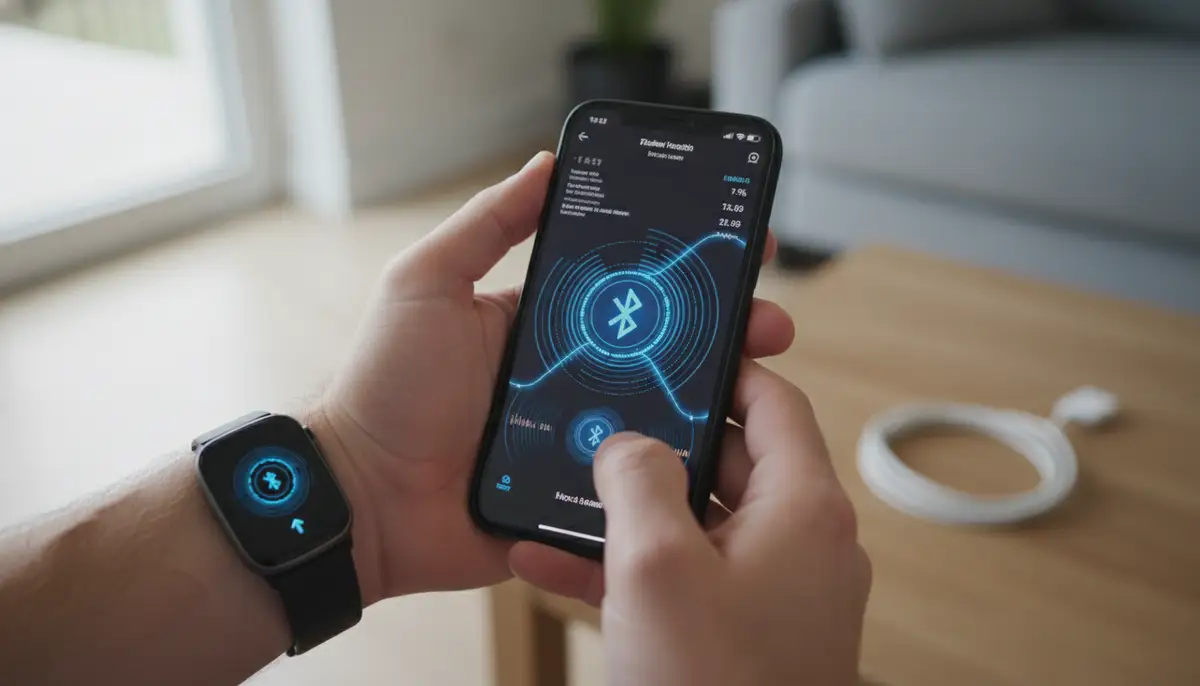
This process is largely similar whether you use an iPhone or an Android device. Ensure your Fitbit is charged and near your smartphone. Make sure Bluetooth is enabled on your phone. This allows the devices to communicate effectively.
- 1. Open the Fitbit App: Launch the Fitbit application on your smartphone. Make sure you are logged into your account. If you don't have the app, download it from your device's app store.
- 2. Tap Your Profile Picture: You'll find this icon in the top left corner of the 'Today' tab. Tapping it opens your account settings and device management options.
- 3. Navigate to Advanced Settings: Scroll down the account screen. Look for 'App Settings' or 'Account Settings,' then find 'Advanced Settings.' This section holds various customization options for your Fitbit experience.
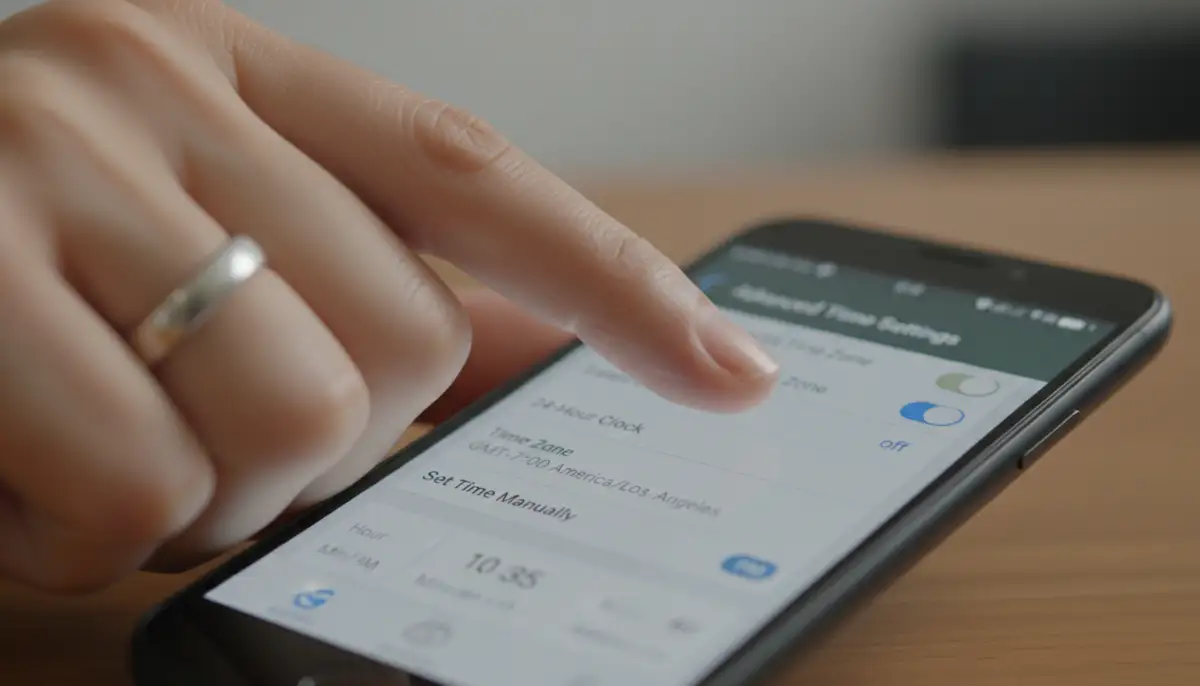
- 4. Locate Time Zone: Within 'Advanced Settings,' you will see an option for 'Time Zone.' This is where you control how your Fitbit interprets time.
- 5. Turn Off Automatic Time Zone: By default, Fitbit tries to detect your time zone automatically. To manually set the time, you need to disable this feature. Toggle the 'Set Automatically' switch to the off position. This gives you control.
- 6. Select Your Desired Time Zone: Once 'Set Automatically' is off, you can tap on 'Time Zone' to choose a specific one from a list. Pick the city or region that matches your current location or preferred time.
- 7. Sync Your Fitbit: After selecting the time zone, go back to the 'Today' dashboard. Pull down on the screen to force a manual sync. Your Fitbit will connect with the app and update its time. You should see the correct time on your device almost immediately.
For more detailed instructions on adjusting your Fitbit's time, you can also refer to comprehensive guides online, such as this helpful resource on setting the time and date on a Fitbit. Additionally, the Fitbit community often discusses various ways to manage time settings, providing valuable insights as seen in this community discussion on changing date and time.
Troubleshooting App-Based Time Setting Issues
Sometimes, even with the right steps, your Fitbit might not update its time. Don't worry, this is usually easy to fix. Here are some common troubleshooting tips to help you if you're struggling with how to set Fitbit watch time via the app.
- Restart Your Phone and Fitbit: A simple restart can often resolve minor software glitches. Turn off both devices, wait a few seconds, then turn them back on.
- Update the Fitbit App: Ensure your Fitbit app is running the latest version. Outdated apps can cause syncing problems. Check your app store for updates.
- Clear App Cache (Android): On Android, go to your phone's Settings > Apps > Fitbit > Storage, then tap 'Clear Cache.' This can fix performance issues.
- Re-pair Your Fitbit: If all else fails, try unpairing your Fitbit from your phone's Bluetooth settings. Then, re-pair it through the Fitbit app. This establishes a fresh connection.
- Check Bluetooth Connection: Make sure your phone's Bluetooth is on and your Fitbit is listed as a connected device. Sometimes, the connection drops without warning.
By following these steps, you should be able to resolve most issues related to setting your Fitbit's time through the app. Remember, patience is key when dealing with tech. Knowing how to set Fitbit watch time efficiently means understanding these common pitfalls.
Adjusting Time Directly on Your Fitbit Device (Select Models)
While the app is the primary method, some advanced Fitbit models, like the Versa and Sense series, offer limited on-device time adjustment options. This is not about setting the actual time, but rather about changing the clock face or restarting the device. For most Fitbit users, the app remains the go-to for how to set Fitbit watch time accurately. However, it's good to know your device's capabilities.
For Fitbit Versa/Sense Series
On devices like the Fitbit Versa or Sense, you can often access a quick settings menu. This menu allows you to manage certain features directly from your wrist. While you won't find a direct 'set time' option here, you can sometimes force a refresh or change settings that influence time display. For specific guidance on adjusting time on Fitbit Versa, some users find community advice helpful.
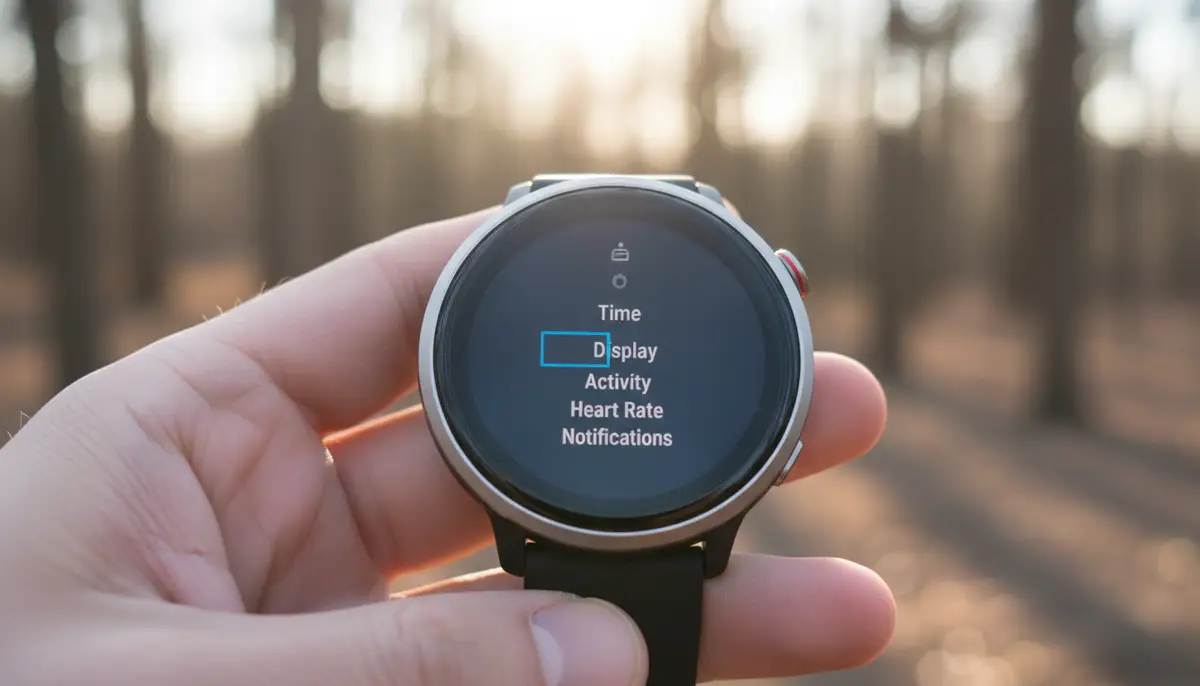
- 1. Press and Hold the Side Button: On your Versa or Sense, press and hold the physical button on the side. This usually brings up quick settings or the main menu.
- 2. Swipe to Settings: Depending on your model and firmware, you might need to swipe left or right to find the 'Settings' app icon.
- 3. Look for 'About' or 'Reboot': Within settings, some devices have an 'About' section or a 'Reboot Device' option. Restarting can sometimes fix minor time display glitches.
- 4. Check Clock Face Settings: While not directly setting the time, ensure your clock face is set to automatically update or display the time zone correctly.
It's important to reiterate that these on-device options are more for managing the watch itself rather than a full manual time set. The Fitbit app is still the authoritative source for how to set Fitbit watch time. Always remember to sync your device after any changes.
Understanding Time Zones and Daylight Saving: A Deeper Dive
Your Fitbit's ability to track your health data accurately relies heavily on correct timekeeping. This includes understanding time zones and Daylight Saving Time (DST). When you travel, your Fitbit should ideally adjust automatically. However, knowing how to set Fitbit watch time manually for these situations is a valuable skill.
Automatic vs. Manual Time Zone Settings
Most users keep the 'Set Automatically' time zone option enabled in the Fitbit app. This is convenient. Your Fitbit will update its time whenever it syncs with your phone. This happens as your phone detects a new time zone. This feature works well for most people. It removes the hassle of manual adjustments.
However, there are times when you might want to disable this. Perhaps you live near a time zone border. Your phone might switch zones frequently. Or maybe you want your Fitbit to reflect your home time zone while traveling. In these cases, manually selecting your time zone is best. This ensures consistency. It gives you full control over how to set Fitbit watch time.
Daylight Saving Time Adjustments
Daylight Saving Time can sometimes cause confusion. When clocks 'spring forward' or 'fall back,' your Fitbit should adjust automatically. This happens during the next sync with your phone. If you notice your Fitbit is an hour off after a DST change, simply force a sync. Open the Fitbit app and pull down on the 'Today' screen. This will trigger a sync. This action usually corrects the time. If it doesn't, follow the manual steps for how to set Fitbit watch time mentioned earlier.
Accurate time is critical for features like sleep tracking and hourly activity goals. If your time is wrong, your data will be skewed. This can impact your understanding of your health patterns. Therefore, mastering how to set Fitbit watch time is not just about convenience. It's about data integrity.
How to Set Fitbit Watch Time: Advanced Tips & Best Practices
Beyond the basic steps, there are advanced tips to ensure your Fitbit always displays the correct time. These practices help maintain seamless operation. They prevent future time-related issues. Knowing these can save you time and frustration.
Ensuring Consistent Syncing
Regular syncing is the backbone of accurate timekeeping for your Fitbit. Make sure your phone's Bluetooth is always on. Keep your Fitbit within a reasonable range of your phone. Also, enable background app refresh for the Fitbit app. This allows it to sync even when not actively open. Consistent syncing means your Fitbit constantly checks and updates its time. This avoids any drift. It's key to how to set Fitbit watch time effectively.
Firmware Updates and Time Accuracy
Fitbit regularly releases firmware updates for its devices. These updates often include bug fixes and performance improvements. Sometimes, these fixes address time-related issues. Always keep your Fitbit's firmware updated. You can check for updates in the Fitbit app under your device settings. An updated device is a more reliable device. It ensures your efforts in how to set Fitbit watch time are not in vain.
When to Restart Your Fitbit
A simple restart can work wonders. If your Fitbit's time is consistently off, or if it refuses to sync, try restarting it. The method varies by model. For most, you connect it to its charging cable. Then, press and hold the button (or buttons) for a specific duration. Check your specific model's manual for exact instructions. A restart often clears minor software glitches. It can restore correct time synchronization. This is a quick and easy step for how to set Fitbit watch time if problems persist.
| Feature | Automatic Time Setting | Manual Time Setting |
|---|---|---|
| Ease of Use | Very easy, set and forget | Requires user intervention |
| Travel Friendly | Adjusts automatically with phone | Requires manual change upon travel |
| Daylight Saving | Updates automatically with phone | Requires manual adjustment |
| Control Level | Low, relies on phone/network | High, user dictates time zone |
| Best For | Most users, frequent travelers | Users near time zone borders, specific preferences |
Personalizing Your Time Display with Watch Faces
Once you've mastered how to set Fitbit watch time, you might want to personalize its appearance. Your Fitbit's watch face is more than just a display. It's a way to express your style and quickly access information. There are thousands of watch faces available. They range from minimalist digital displays to complex analog designs. You can find them in the Fitbit app's 'Clocks' section.
For those who love customizing their wearables, platforms like WatchMaker offer an incredible repository of thousands of unique watch faces. These are available for both Apple Watch and Wear OS devices. While Fitbit has its own ecosystem, the desire for personalized time displays is universal across smartwatches. Whether you prefer a clean, modern look or a classic, intricate design, there's a watch face for everyone. You can easily download watch faces to match your mood or outfit. This customization extends beyond just Fitbit. If you're comparing different wearables, a detailed breakdown of digital vs analog watch options might interest you. For those considering other brands, an Apple Watch vs Watch Nike comparison can also provide valuable insights into diverse smartwatch ecosystems.
The world of custom watch faces is vast. Companies like Pujie Black, buddywatch.app, and amoledwatchfaces.com also provide excellent options for various smartwatch platforms. These alternatives highlight the rich ecosystem of wearable customization. They show how much users value personalizing their devices. Your Fitbit, too, offers a wide selection to make your time display truly yours.
Common Questions About How to Set Fitbit Watch Time
Even with a comprehensive guide, specific questions can arise. Here are answers to some frequently asked questions about how to set Fitbit watch time. These cover common scenarios and provide quick solutions.
My Fitbit Isn't Syncing, What Now?
If your Fitbit isn't syncing, the time won't update. First, ensure your phone's Bluetooth is on. Make sure the Fitbit app is open or running in the background. Try restarting both your phone and your Fitbit device. If the issue persists, check for app updates. You might also need to re-pair your Fitbit with your phone's Bluetooth. Sometimes, simply walking away from other Bluetooth devices can help. This reduces interference. A strong, stable connection is vital for how to set Fitbit watch time.
Does My Fitbit Need Wi-Fi for Time Sync?
No, your Fitbit generally does not need Wi-Fi to sync its time. It primarily uses Bluetooth to connect with your smartphone. Your smartphone then uses its own network connection (cellular or Wi-Fi) to get the accurate time. This time is then passed to your Fitbit via Bluetooth. So, as long as your phone has a connection and Bluetooth is active, your Fitbit should sync its time. This simplifies how to set Fitbit watch time on the go.
What if I Travel to a Different Time Zone?
When you travel, your phone automatically detects the new time zone. If your Fitbit's 'Set Automatically' time zone setting is enabled, it will update its time during the next sync. Simply open the Fitbit app after you arrive in the new time zone. Force a sync by pulling down on the 'Today' screen. Your Fitbit should then display the correct local time. If it doesn't, follow the manual steps to select the new time zone in the app. This ensures accurate tracking during your travels. Here's a helpful video that walks through the process:
.Understanding these common questions helps you quickly address any time-related issues. It empowers you to maintain accurate data. This knowledge is crucial for anyone relying on their Fitbit daily. Knowing how to set Fitbit watch time quickly and efficiently is a key skill for all Fitbit users.
You might also wonder if specific Fitbit models behave differently. While the core principle of syncing with the app remains, some older models might have slightly different menu navigation. Always refer to the official Fitbit support pages for your specific model if you encounter unique issues. However, the methods discussed here apply to the vast majority of Fitbit devices in 2025.
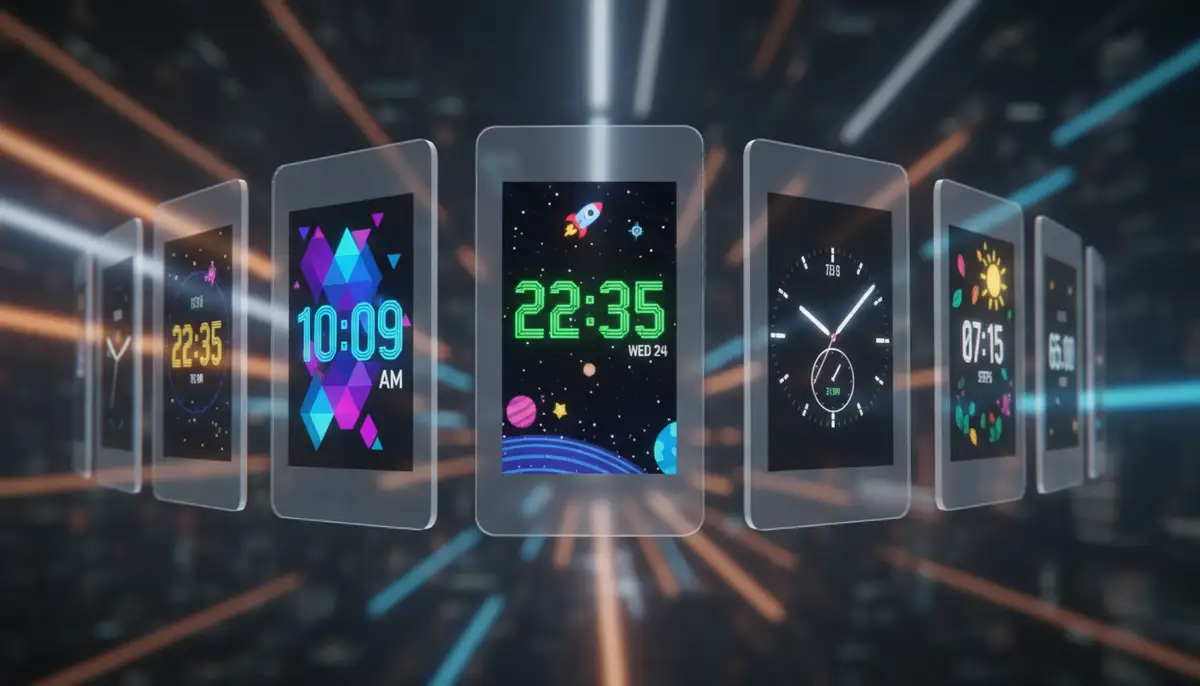
Ensuring your Fitbit always shows the correct time is fundamental. It impacts everything from your morning alarm to your daily activity goals. A correctly set time means accurate data. Accurate data helps you make better health decisions. It keeps you on track with your fitness journey. This guide has provided you with all the necessary tools. You now know how to set Fitbit watch time confidently and effectively.
Whether you're a new Fitbit user or a seasoned veteran, occasional time discrepancies can happen. By following the steps outlined in this guide, you can quickly resolve them. You can ensure your device is always in sync with your schedule. Embrace the simplicity and reliability of your Fitbit. Enjoy the peace of mind that comes with accurate timekeeping. Your fitness journey deserves precise data. Now you truly understand how to set Fitbit watch time for optimal performance.
Related Posts

The Watch Face Mistake Almost Every New Garmin Owner Makes
There's a predictable arc to owning a new Garmin. Day one, you install a watch face that shows everything: heart rate, steps, battery, weather, two time zones,...

The Ultimate Apple Watch Strap Guide: Find Your Perfect Fit & Style in 2025
Introduction: Your Essential Apple Watch Strap Guide for 2025 Your Apple Watch is more than just a gadget. It's a personal statement, a fitness tracker, and a...