
 Pokemon Card Scanner
 Live Wallpapers Unlimited




Mastering Your Casio: A Comprehensive Guide on How to Set Casio Wristwatch in 2025
Introduction: Demystifying How to Set Casio Wristwatch
Casio watches are renowned for their durability, reliability, and wide range of features. From the iconic F-91W to the robust G-Shock series and elegant Edifice models, millions rely on Casio every day. However, setting these watches can sometimes feel like a puzzle. This comprehensive guide will walk you through exactly how to set Casio wristwatch models, ensuring your timepiece is always accurate and ready for action in 2025. We will cover everything from basic time and date adjustments to more advanced functions like alarms and world time.
Whether you just unboxed a new Casio or found an old favorite, getting the time right is crucial. You'll learn the common buttons and functions. We will make the process simple and straightforward for every Casio owner.
Understanding Your Casio: The Basics of Watch Buttons
Before you dive into how to set Casio wristwatch, it's essential to understand the basic layout. Most Casio watches, especially digital ones, feature a standard set of buttons. These buttons control various functions and modes.
Typically, you'll find four buttons, often labeled or positioned in a consistent manner. Knowing their general purpose will greatly simplify the setting process.
| Button Name (Common) | Typical Function |
|---|---|
| Adjust/Set | Enters or exits setting mode; confirms selections. |
| Mode | Cycles through different watch modes (Timekeeping, Alarm, Stopwatch, Timer). |
| Start/Stop/Light | Starts/stops stopwatch or timer; changes values; illuminates the display. |
| Reset/Forward | Resets stopwatch; moves selection forward; changes values. |
Keep in mind that button labels can vary slightly between models. Always refer to your specific model's manual for precise button functions. For general guidance on time adjustment, you can also visit Casio's Time Adjustment page.
Finding Your Casio Model Number and Manual
The first and most critical step in learning how to set Casio wristwatch is identifying your specific model. Casio produces hundreds of different watches. Each model might have unique button combinations or setting sequences. Your watch's model number is usually engraved on the back case. It often looks like a series of numbers and letters, such as 'DW-5600' or 'AQ-S810W'.
Once you have your model number, you can easily find the official user manual. Casio provides a comprehensive database of Manuals | Watches on their website. Simply enter your model number, and you'll get a PDF guide. This manual is your best friend for detailed, model-specific instructions on how to set Casio wristwatch features.
How to Set Casio Wristwatch: Digital Models (The Basics)
Most digital Casio watches follow a similar pattern for basic time and date settings. This process is often intuitive once you understand the core steps. Let's break down how to set Casio wristwatch digital models.
Setting the Time on a Digital Casio
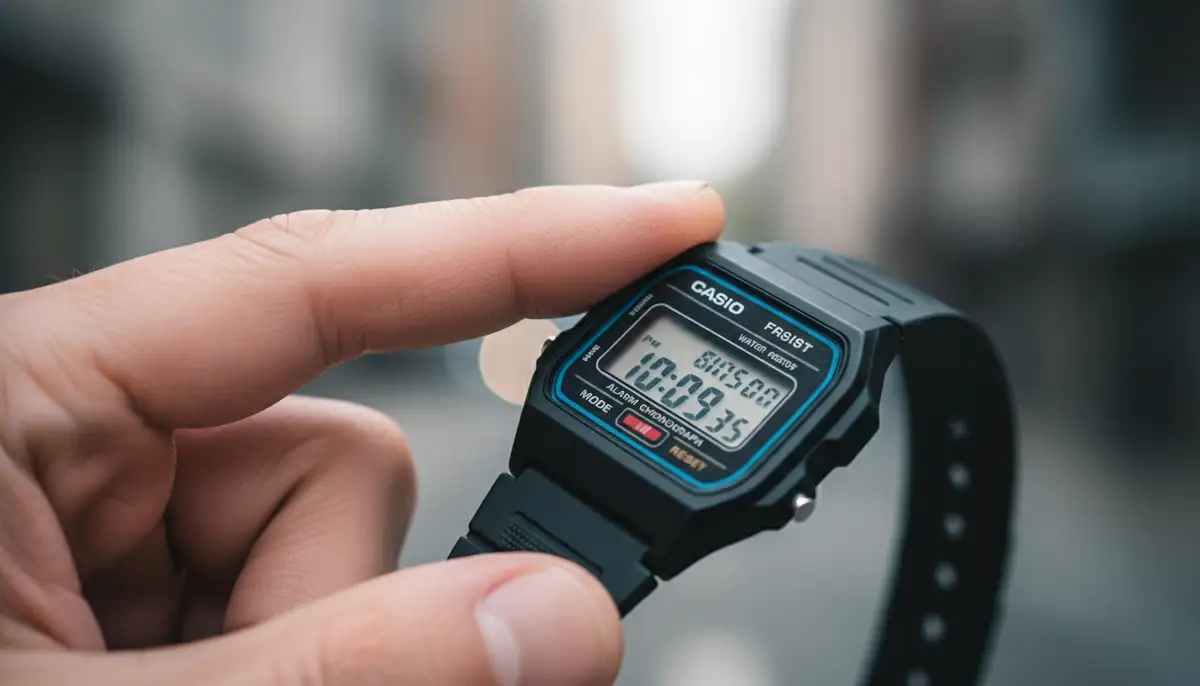
Here's a step-by-step guide for setting the time on most standard digital Casio watches:
- 1. Enter Setting Mode: Press and hold the 'Adjust' or 'Set' button (usually top-left) for a few seconds until the seconds start flashing. This indicates you are in the setting mode.
- 2. Navigate Through Settings: Press the 'Mode' button (usually bottom-left) repeatedly to cycle through the different settings. You'll typically see seconds, hours, minutes, year, month, day, 12/24-hour format, and sometimes daylight saving time (DST) settings.
- 3. Adjust Values: When the desired value (e.g., hours) is flashing, use the 'Start/Stop' or 'Forward' button (usually on the right side) to increase the value. Some models might have a 'Reset' button to decrease values or cycle faster.
- 4. Set Seconds to Zero: When the seconds are flashing, pressing the 'Start/Stop' button often resets them to '00'. It's best to do this when a time signal (like a phone or atomic clock) reaches the '00' second mark, for precise synchronization.
- 5. Confirm and Exit: Once all settings are correct, press the 'Adjust' or 'Set' button again to exit the setting mode. The flashing will stop, and your watch will resume normal timekeeping.
Setting the Date on a Digital Casio
Setting the date often happens within the same setting mode as the time. After adjusting hours and minutes, keep pressing the 'Mode' button. You will eventually reach the year, month, and day settings. Use the 'Start/Stop' or 'Forward' button to adjust each value. Remember, your Casio watch is smart. It will automatically adjust for short and long months once the year, month, and day are correctly set. This is a key part of how to set Casio wristwatch for full functionality.
How to Set Casio Wristwatch: Analog Models
Analog Casio watches, which display time with hands, are generally simpler to set. Most rely on a crown, a small knob on the side of the watch case. This is a traditional method for how to set Casio wristwatch analog styles.
Setting Time on an Analog Casio with a Crown
- 1. Pull Out the Crown: Gently pull the crown out to the first or second click position. The number of clicks depends on whether your watch has a date function. Pulling it out usually stops the second hand.
- 2. Rotate the Crown: Turn the crown clockwise or counter-clockwise to move the hour and minute hands to the correct time. If your watch has a date function, rotating the crown in one direction might adjust the date while the hands move.
- 3. Push the Crown Back In: Once the time is set, push the crown back into its normal position. This will restart the second hand and begin timekeeping. Make sure it's pushed in completely to maintain water resistance.
Setting the Date on an Analog Casio
If your analog Casio has a date display, you typically set it by pulling the crown out to the first click. Then, rotate the crown in a specific direction (usually clockwise) to advance the date. Once the correct date appears, push the crown back in. Be careful not to set the date between 9 PM and 3 AM. Changing the date during these hours can sometimes damage the watch's internal mechanism. This small detail is important for how to set Casio wristwatch dates correctly.
How to Set Casio Wristwatch: G-Shock Models (Advanced Digital)
Casio G-Shock watches are known for their ruggedness and advanced features. While they share similarities with basic digital Casios, G-Shocks often include more functions like world time, multiple alarms, and sometimes even atomic time synchronization or Bluetooth connectivity. Learning how to set Casio wristwatch G-Shock models might take a bit more patience.
Setting Time and Date on a G-Shock
The general principle remains the same: enter setting mode, navigate, adjust, and confirm. However, G-Shocks often have more settings to cycle through. You'll typically find an 'Adjust' button (top-left) to enter setting mode. Then, use the 'Mode' button (bottom-left) to move between settings. The 'Start' and 'Reset' buttons (right side) adjust values. For a detailed guide on how to set time on a Casio watch with four buttons, which many G-Shocks are, you can check out this Quora discussion.
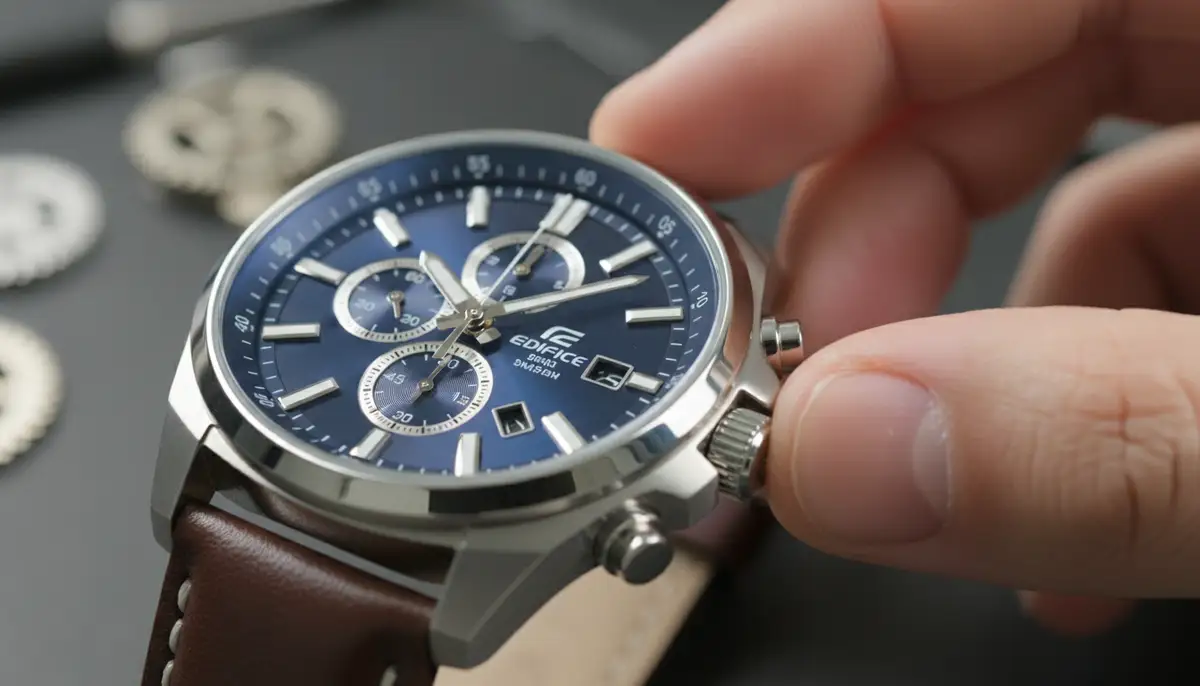
- 1. Timekeeping Mode: Ensure your G-Shock is in the regular Timekeeping mode.
- 2. Enter Setting Mode: Press and hold the 'Adjust' button for several seconds. The city code or time zone will usually start flashing first.
- 3. Select City Code/Time Zone: Use the 'Start' or 'Reverse' buttons to select your home city code. This is crucial for accurate time and date.
- 4. DST Setting: Press 'Mode' to move to the Daylight Saving Time (DST) setting. Use 'Start' to toggle between ON and OFF.
- 5. Adjust Time: Continue pressing 'Mode' to cycle through 12/24-hour format, seconds, hours, and minutes. Use the right-side buttons to adjust each value.
- 6. Set Date: Keep pressing 'Mode' to reach the year, month, and day settings. Adjust them as needed.
- 7. Exit Setting Mode: Press the 'Adjust' button again to save your settings and exit.
Setting World Time on a G-Shock
Many G-Shocks feature World Time, allowing you to view the time in different cities around the globe. To access this, press the 'Mode' button until 'WT' or 'World Time' appears on the display. Then, use the 'Start' or 'Reverse' buttons to cycle through the available city codes. This is a handy feature for travelers and an important aspect of how to set Casio wristwatch for global use.
Setting Alarms on Your Casio Wristwatch
Most Casio watches, digital and some analog-digital hybrids, include an alarm function. Setting an alarm is typically straightforward:
- 1. Enter Alarm Mode: Press the 'Mode' button repeatedly until 'ALM' or 'Alarm' appears on the display.
- 2. Select Alarm Number (if applicable): Some watches have multiple alarms (AL1, AL2, etc.). Use a button (often 'Start') to cycle through them.
- 3. Enter Alarm Setting: Hold the 'Adjust' or 'Set' button until the alarm time starts flashing.
- 4. Adjust Alarm Time: Use the right-side buttons to set the desired hour and minute for the alarm.
- 5. Activate/Deactivate Alarm: While in Alarm mode, you can usually press a button (like 'Start' or 'Light') to toggle the alarm ON or OFF. A small alarm icon will appear on the display when activated.
- 6. Exit: Press 'Adjust' or 'Mode' to return to normal timekeeping.
Special Casio Models: Wave Ceptor, Edifice, and Smartwatches
Casio's lineup extends beyond basic digital and analog models. Understanding how to set Casio wristwatch in these specialized categories requires a slightly different approach.
Wave Ceptor (Atomic Time) Watches
Wave Ceptor models automatically synchronize with atomic time signals. This means they should set themselves! However, you still need to set your home city code. This tells the watch which time zone's signal to receive and apply. Once the home city is set, the watch will attempt to receive a signal nightly. If it fails (e.g., due to interference), you might need to manually trigger a reception or set the time manually as a backup. This is a highly convenient way for how to set Casio wristwatch for ultimate accuracy.
Edifice Watches
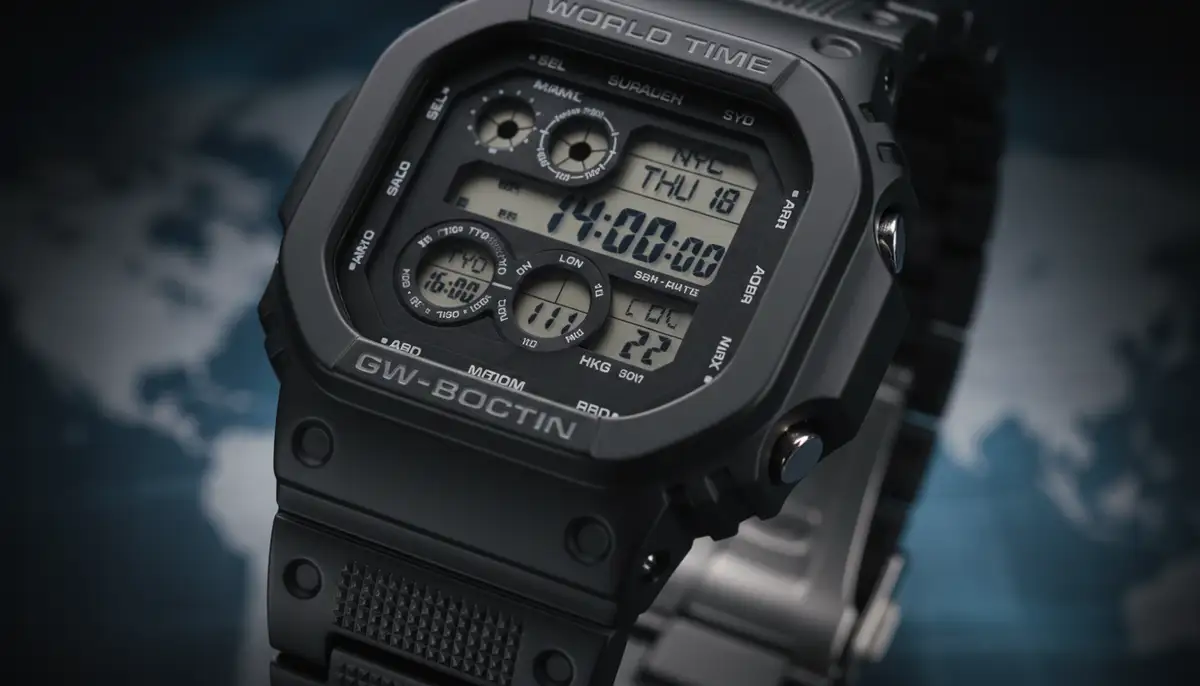
Casio Edifice watches often combine analog displays with digital features, or are purely analog chronographs. Setting these usually involves a combination of crown manipulation and button presses. For example, setting the time might use the crown, while setting a stopwatch or alarm uses the pushers. Always consult the specific manual for your Edifice model. Some advanced Edifice models also feature Bluetooth connectivity for smartphone-assisted setting.
Casio Smartwatches (Wear OS)
Casio also offers smartwatches, typically running on Google's Wear OS. Setting these is vastly different. They usually sync time and date automatically with your paired smartphone. Customization comes in the form of watch faces. If you're into personalizing your digital watch experience, platforms like WatchMaker offer thousands of unique watch faces for Wear OS devices. You can download watch faces to completely transform your Casio smartwatch's look. Other platforms like amoledwatchfaces.com, Pujie Black, and facer.io also provide extensive customization options for smartwatches, allowing users to share watch faces and explore a vast community of designs. While this isn't about how to set Casio wristwatch time, it's about customizing its digital display.
Troubleshooting Common Casio Setting Issues
Sometimes, despite following the instructions, your Casio might not set correctly. Here are some common issues and their solutions:
- Watch Not Responding: Check the battery. A low battery can cause erratic behavior or prevent the watch from entering setting mode. Replace it if necessary.
- Incorrect Time Zone: For digital and Wave Ceptor models, ensure your home city code is correctly set. This is often the culprit for incorrect time, even after manual adjustment.
- Daylight Saving Time (DST) Issues: Double-check your DST setting. If it's incorrectly set to ON or OFF, your time will be off by an hour.
- Analog Hands Not Synchronized: Some analog-digital Casios require a 'hand home position adjustment' if the analog hands don't match the digital time. This is usually found in a special setting mode (refer to your manual).
If you are struggling to set your Casio wristwatch, remember to consult the official manual. It provides the most accurate, model-specific troubleshooting steps.
Beyond Setting Time: Other Important Adjustments
Knowing how to set Casio wristwatch time is just the beginning. There are other adjustments you might need to make to ensure comfort and functionality.
Adjusting the Watch Band
A watch that fits well is comfortable to wear and less likely to get damaged. If your Casio's band is too loose or too tight, you might need to adjust it. Metal bracelets often have removable links or micro-adjustment clasps. Resin or leather straps have buckles with multiple holes. For a visual guide on how to adjust a metal Casio watch band, watch this helpful video:
. This ensures your Casio wristwatch fits perfectly.Battery Replacement and Care
Most Casio watches use a standard button-cell battery. When the display dims or the watch stops working, it's time for a replacement. While it's possible to do it yourself, taking it to a professional watchmaker is recommended, especially for water-resistant models. They can ensure the gasket is properly sealed. This maintains the watch's water resistance. Proper care extends the life of your Casio wristwatch.
The Future of Watch Customization and Casio
As technology advances, so do our watches. While traditional Casio models continue their legacy, the world of smartwatches offers unparalleled customization. For those who appreciate digital displays, the ability to personalize your watch face is a game-changer. Whether you're looking for best faces for Apple Watch or Wear OS, the options are endless. Companies like WatchMaker are at the forefront, providing a vast repository of watch faces that can transform your device's appearance daily. This digital frontier complements the enduring appeal of classic Casio timepieces, showing how the watch industry evolves.
Even with smartwatches, the fundamental need to set the time remains, though often automated. Understanding how to set Casio wristwatch, whether a classic digital or a modern smart device, gives you full control over your personal timekeeping. It's a skill that remains relevant, ensuring your watch is always an accurate and reliable companion.
Conclusion: Your Casio, Perfectly Set
You now have a comprehensive understanding of how to set Casio wristwatch models. From the straightforward adjustments of an analog watch to the multi-functional settings of a G-Shock, you're equipped with the knowledge. Always remember to consult your specific model's manual for the most precise instructions. With a little practice, setting your Casio will become second nature. Enjoy the precision and reliability that your perfectly set Casio wristwatch brings to your daily life.
Related Posts

The Watch Face Mistake Almost Every New Garmin Owner Makes
There's a predictable arc to owning a new Garmin. Day one, you install a watch face that shows everything: heart rate, steps, battery, weather, two time zones,...

The Ultimate Apple Watch Strap Guide: Find Your Perfect Fit & Style in 2025
Introduction: Your Essential Apple Watch Strap Guide for 2025 Your Apple Watch is more than just a gadget. It's a personal statement, a fitness tracker, and a...