
 Pokemon Card Scanner
 Live Wallpapers Unlimited




Master Your G-SHOCK: A Complete Guide on How to Change G Shock Time
Your G-SHOCK watch is a marvel of engineering, known for its incredible toughness and reliable timekeeping. But even the toughest watches sometimes need a little adjustment. Maybe you've traveled across time zones, or perhaps Daylight Saving Time (DST) just kicked in. Whatever the reason, knowing how to change G Shock time is a fundamental skill for any owner. This guide will walk you through the process step-by-step, ensuring your G-SHOCK always shows the correct time, no matter where you are in 2025.
Keeping accurate time is more important than ever in our fast-paced world. From catching flights to scheduling meetings, precision matters. We understand the need for reliable time, which is why we also help users customize their digital timekeeping experiences with WatchMaker, offering thousands of watch faces for Apple Watch and Wear OS devices. But first, let’s focus on mastering your G-SHOCK. You'll find that learning how to change G Shock time is quite straightforward once you understand the basic controls.
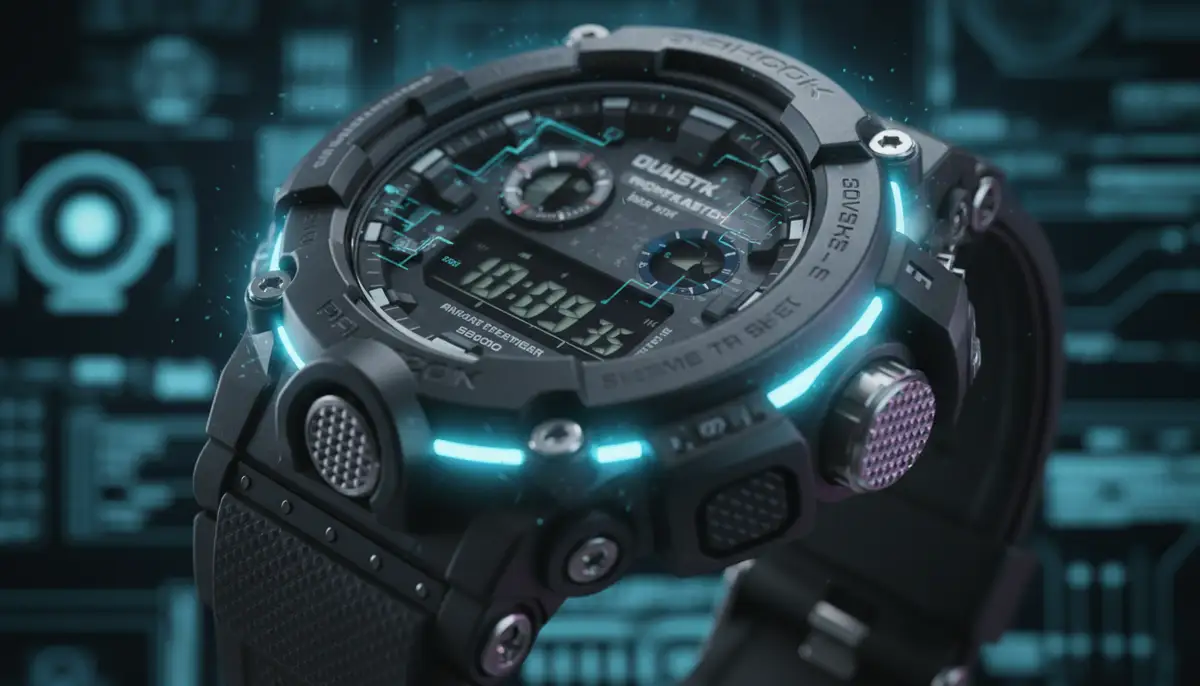
Understanding Your G-SHOCK's Buttons
Before you dive into adjusting the time, it's helpful to get familiar with the buttons on your G-SHOCK. While models vary, most G-SHOCK watches share a similar button layout and function. Typically, you'll find four buttons, sometimes five, strategically placed around the watch case. Each button has a primary function, and often a secondary function when held down or used in combination with others.
Knowing what each button does is the first step in understanding how to change G Shock time effectively. Let's break down the common buttons you'll encounter on most G-SHOCK models.
- Adjust/Set Button (Top-Left): This is your gateway to the settings menu. You typically press and hold this button to enter or exit the time setting mode.
- Mode Button (Bottom-Left): Use this button to cycle through different modes like stopwatch, timer, alarm, and to navigate between different settings (hours, minutes, year, date) once you're in the time setting mode.
- Reverse/Start Button (Top-Right): This button usually decreases values or moves backward through options when setting the time. It might also serve as a start/stop button for the stopwatch or timer.
- Forward/Light Button (Bottom-Right): This button typically increases values or moves forward through options. It also often activates the backlight to illuminate the display in dark conditions.
Some G-SHOCK models might have an additional button, or dual functions clearly marked. Always check your specific model's manual if you're unsure. However, the core principle of how to change G Shock time remains consistent across the brand.
The Basics: How to Change G Shock Time on Most Models
Now, let's get to the main event: learning how to change G Shock time. This general guide applies to most digital G-SHOCK watches. The exact steps might vary slightly by module number, but the core process is very similar.
- Step 1: Enter Time Setting Mode. Locate the 'Adjust' or 'Set' button, usually on the top-left side of your watch. Press and hold this button for about 2-3 seconds until the city code starts to flash on the digital display, or you hear a beep. This indicates you've entered the time setting mode. For a quick reference, Casio's blog provides an excellent overview on how to change the time on a G-SHOCK watch.
- Step 2: Select Your Home City. Once in setting mode, the city code (e.g., 'TYO' for Tokyo, 'NYC' for New York) will flash. Use the 'Reverse' (top-right) and 'Forward' (bottom-right) buttons to scroll through the available city codes and select your home city. This is crucial for accurate time and date synchronization.
- Step 3: Adjust Daylight Saving Time (DST). After setting your home city, press the 'Mode' button (bottom-left) to move to the DST setting. Use the 'Reverse' or 'Forward' button to toggle DST 'ON' or 'OFF' as needed. Most modern G-SHOCKs can automatically adjust DST if your home city supports it and the watch has atomic or Bluetooth sync.
- Step 4: Set Time Format (12/24-Hour). Press 'Mode' again. You'll see the 12H or 24H format flashing. Choose your preferred format using the 'Reverse' or 'Forward' buttons.
- Step 5: Set Seconds, Hours, and Minutes. Continue pressing the 'Mode' button to cycle through the time settings: seconds, hours, and minutes. When a value is flashing, use the 'Reverse' and 'Forward' buttons to adjust it. Remember, you can hold these buttons down for faster scrolling.
- Step 6: Set Year, Month, and Day. After setting the minutes, press 'Mode' to move to the date settings: year, month, and day. Adjust each value using the 'Reverse' and 'Forward' buttons.
- Step 7: Set Illumination Duration (Optional). Some models allow you to set the backlight duration (e.g., 1.5 seconds or 3 seconds). Press 'Mode' again to reach this setting and adjust if desired.
- Step 8: Exit Setting Mode. Once all adjustments are made, press the 'Adjust' or 'Set' button again. Your watch will exit the setting mode, and the new time and date will be displayed. Your G-SHOCK is now perfectly synchronized! This process helps you understand how to change G Shock time with precision.
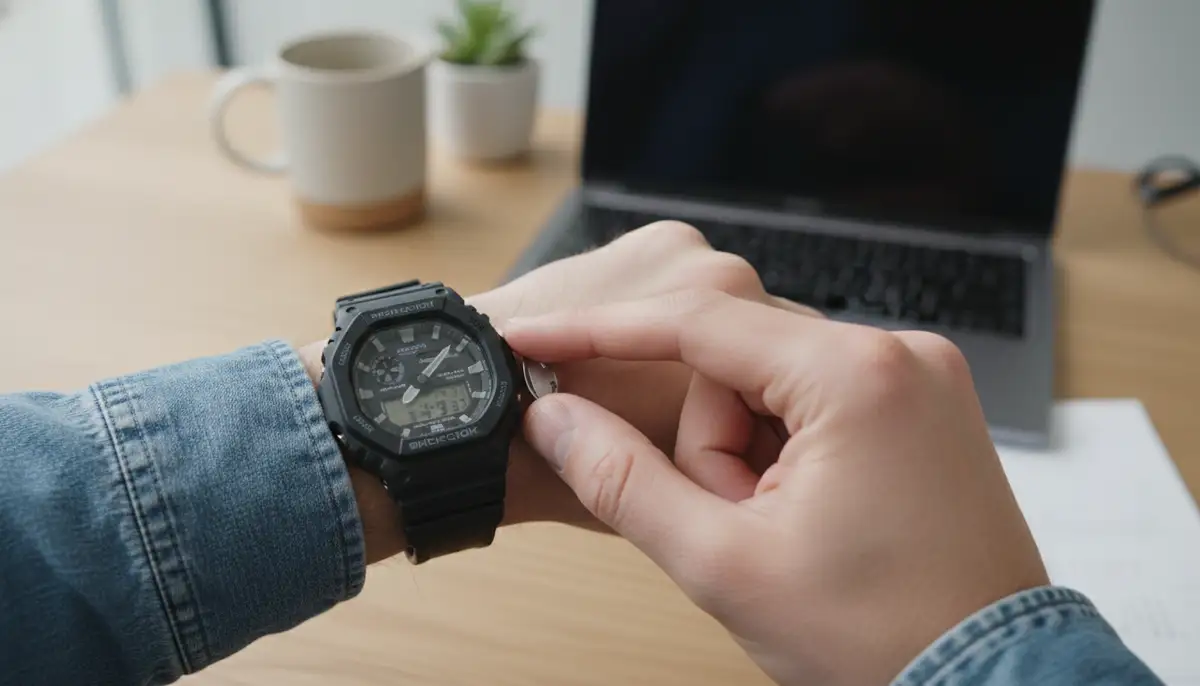
It's important to be patient and deliberate with each step. Rushing might cause you to skip a setting or make an error. Take your time, and soon you'll be a pro at knowing how to change G Shock time.
| Button | Primary Function in Time Setting Mode | Description |
|---|---|---|
| Adjust (Top-Left) | Enter/Exit Setting Mode | Starts and saves your time adjustments. |
| Mode (Bottom-Left) | Navigate Settings | Moves between city, DST, hours, minutes, year, etc. |
| Reverse (Top-Right) | Decrease Value/Move Backward | Decreases the flashing number or scrolls backward through options. |
| Forward (Bottom-Right) | Increase Value/Move Forward | Increases the flashing number or scrolls forward through options. |
Adjusting Time on Analog-Digital G-SHOCKs
Many popular G-SHOCK models, like the GA-100 or GA-2100 (Casioak), feature both an analog display (hands) and a digital display. When you change the digital time on these models, the analog hands usually adjust automatically. However, sometimes the hands might get out of sync, especially after a strong impact or battery change. This section explains how to change G Shock time on these hybrid models and how to align the hands manually.
- Step 1: Set the Digital Time First. Follow the steps outlined in the previous section to set the digital time accurately. Ensure your Home City and DST settings are correct. The analog hands should attempt to move to match the digital time.
- Step 2: Check Hand Alignment. After the digital time is set, observe if the analog hands point to the correct time. If they don't, you'll need to perform a manual hand alignment.
- Step 3: Enter Hand Alignment Mode. This typically involves holding down a combination of buttons, or entering a specific mode. For many models, you'll press and hold the 'Forward' (bottom-right) button for several seconds while in the timekeeping mode, or navigate through the 'Mode' button until you see 'H.SET' or 'Hand Set' on the digital display. Consult your manual for the exact sequence for your model.
- Step 4: Adjust Hour and Minute Hands. Once in 'Hand Set' mode, the hands will usually move to a specific reference point (e.g., 12:00). Use the 'Reverse' and 'Forward' buttons to move the minute hand (and often the hour hand simultaneously) until they are perfectly aligned with the 12 o'clock position. Some models allow you to adjust the hour and minute hands independently.
- Step 5: Exit Hand Alignment Mode. Once the hands are perfectly aligned, press the 'Adjust' or 'Set' button to save the setting and exit the mode. The hands should then automatically jump to match the currently set digital time. This ensures both displays are synchronized after you change G Shock time digitally.
Manual hand alignment is a critical step for analog-digital G-SHOCKs to ensure both displays are showing the correct time. If you only set the digital time and the hands are off, your watch isn't truly accurate. This extra step is key to knowing how to change G Shock time completely on these models.
Setting Your Home City and Daylight Saving Time (DST)
Your G-SHOCK's accuracy heavily relies on correctly setting your 'Home City' and managing Daylight Saving Time. These two settings are often overlooked but are crucial for ensuring your watch displays the local time accurately, especially if you travel or live in a region that observes DST. Understanding these settings is a vital part of knowing how to change G Shock time effectively.
The Home City setting tells your watch your current geographical location, allowing it to calculate the correct time zone. Many G-SHOCK models use this information to automatically adjust for DST or even receive atomic time signals. If your Home City is incorrect, your watch's time will be off, even if you manually set the hours and minutes.
- Selecting Your Home City: When you first enter the time setting mode (by holding the 'Adjust' button), the city code is typically the first item that flashes. Use the 'Reverse' and 'Forward' buttons to scroll through the list of city codes until you find the one closest to your current location. For example, 'NYC' for New York, 'LON' for London, 'TYO' for Tokyo. Choose the major city within your time zone. This is a crucial step for how to change G Shock time correctly.
- Adjusting Daylight Saving Time (DST): After setting your Home City, press the 'Mode' button to move to the DST setting. It will usually show 'DST ON' or 'DST OFF'. Use the 'Reverse' or 'Forward' button to toggle this setting. If your region observes DST, set it to 'ON' during the summer months and 'OFF' during the winter. Some advanced G-SHOCKs with Multi-Band 6 or Bluetooth connectivity can update DST automatically based on your Home City. However, knowing how to manually adjust it is always a good backup. As Shiels.com.au points out, holding down the 'adjust' button is your starting point for these critical changes.
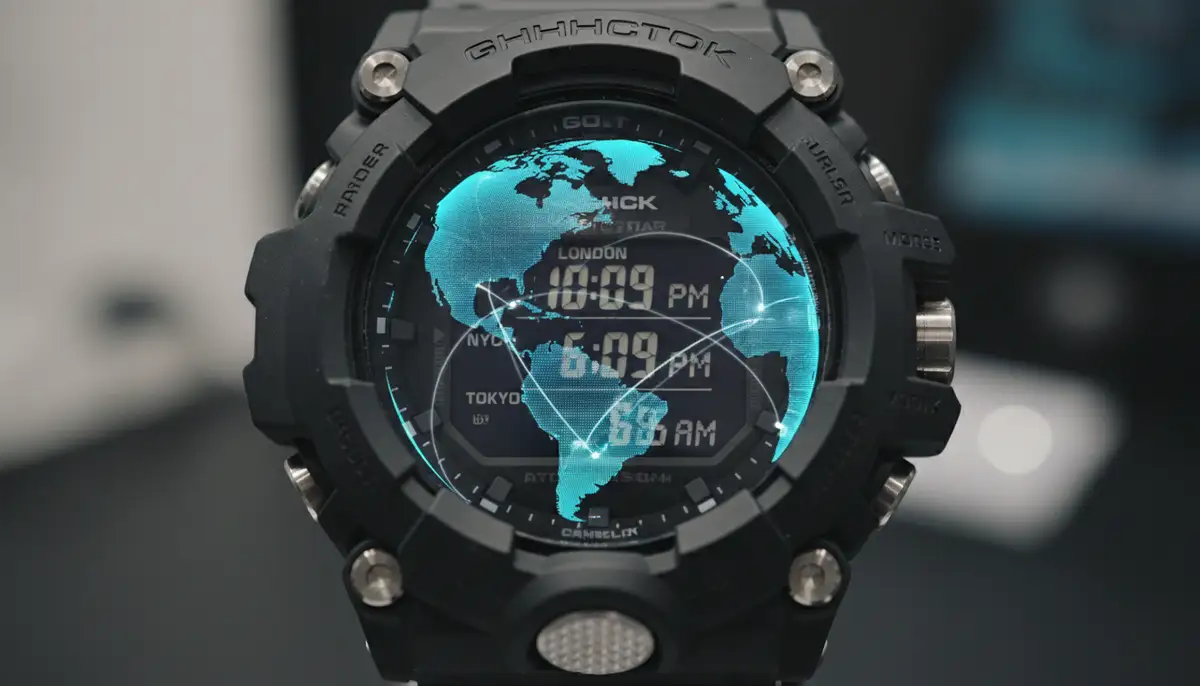
Always double-check your Home City and DST settings, especially after traveling or if the time suddenly seems incorrect. These settings have a profound impact on how your G-SHOCK displays the local time, simplifying the process of how to change G Shock time in various scenarios.
Advanced Timekeeping Features: World Time and Auto-Adjust
G-SHOCK watches are not just about ruggedness; they also pack sophisticated timekeeping features. Beyond simply knowing how to change G Shock time for your local zone, many models offer World Time, Multi-Band 6 atomic timekeeping, and even Bluetooth connectivity for automatic synchronization. These features make keeping accurate time across the globe incredibly convenient.
- World Time Function: Ideal for frequent travelers, the World Time mode allows you to quickly view the current time in various major cities around the world. You can usually access this mode by pressing the 'Mode' button until 'WT' or 'World Time' appears. From there, use the 'Reverse' and 'Forward' buttons to scroll through different city codes and see their respective times. Some models even let you swap your Home City with a World Time city, making it easy to adapt to a new location without a full reset. This feature complements your understanding of how to change G Shock time for multiple zones.
- Multi-Band 6 Atomic Timekeeping: Many high-end G-SHOCK models feature Multi-Band 6 technology. This means your watch can receive time calibration signals from atomic clocks in six different regions around the world (Japan, North America, UK, Europe, China). These signals automatically adjust your watch's time, ensuring pinpoint accuracy. If your G-SHOCK has this feature, ensure your Home City is set correctly within one of the reception areas, and the watch will do the rest. This drastically reduces the need to manually change G Shock time.
- Bluetooth Connectivity: Newer G-SHOCK models, particularly those in the G-STEEL or G-SQUAD series, come with Bluetooth connectivity. By linking your watch to the G-SHOCK Connected app on your smartphone, your watch will automatically synchronize its time with your phone's time server. This provides incredibly accurate timekeeping and automatically handles DST adjustments and World Time settings, making the question of how to change G Shock time almost redundant. It's a seamless way to keep your watch updated.
These advanced features highlight G-SHOCK's commitment to precision. While manual adjustment is always an option, leveraging these technologies provides an effortless way to maintain accurate time. For those interested in how different time zones and weather information can be displayed, exploring weather watch faces can offer exciting new perspectives on digital timekeeping.
Troubleshooting Common Time Setting Issues
Even with a clear understanding of how to change G Shock time, you might occasionally run into minor issues. Don't worry, most problems are easy to fix. Here are some common troubleshooting tips to help you if your G-SHOCK isn't cooperating.
- Hands Not Aligning (Analog-Digital Models): If your analog hands don't match the digital time, you likely need to perform a manual hand alignment as described in the 'Adjusting Time on Analog-Digital G-SHOCKs' section. This is a separate process from setting the digital time itself. Always make sure the digital time is correct first.
- Buttons Not Responding: If your buttons seem unresponsive, first ensure the watch isn't in a locked or 'sleep' mode (though G-SHOCKs rarely have a button lock). Sometimes, a low battery can affect button responsiveness. If the battery is weak, consider a replacement. Also, ensure you are pressing and holding the 'Adjust' button long enough (2-3 seconds) to enter the setting mode. A quick press usually just switches modes.
- Time Keeps Reverting: If you set the time, but it keeps reverting to an incorrect time, check your Home City and DST settings. If your watch has Multi-Band 6 or Bluetooth, it might be receiving an incorrect signal or syncing with an incorrectly set phone. Try turning off auto-sync features temporarily to see if the manual setting holds. For more quick tips, Quora offers advice on how to set time on a G-Shock watch, often pointing to the 'adjust' button.
- Incorrect Date After Time Change: Ensure you've correctly set the year, month, and day during the time setting process. G-SHOCKs have an auto-calendar, so once the date is set accurately, it should adjust for leap years and different month lengths automatically. If the date is still off, re-enter the time setting mode and pay close attention to the date fields.
- Display is Blank or Faint: This is usually a sign of a low battery. Replace the battery as soon as possible. Some G-SHOCKs have a power-saving mode that might dim the display in darkness; check if it brightens with light or a button press.
Most G-SHOCK issues are minor and easily resolved. If you've tried these steps and are still having trouble, consulting your watch's specific module manual is always the best course of action. Every manual provides detailed, model-specific instructions on how to change G Shock time and troubleshoot common problems.
Specific Model Spotlight: How to Change G Shock Time on Popular Series
While the general steps for how to change G Shock time are broadly applicable, some popular models have nuances worth mentioning. Understanding these specific details can make the process even smoother for your particular watch.
- DW-5600/6900 Series (Classic Digital): These iconic models are straightforward. The 'Adjust' button (top-left) starts the process. You'll cycle through settings with 'Mode' (bottom-left) and adjust values with 'Reverse' (top-right) and 'Forward' (bottom-right). The simplicity of these models makes learning how to change G Shock time very intuitive.
- GA-100/110 Series (Analog-Digital): These models require attention to both digital time setting and potential manual hand alignment. Set the digital time first, then enter the 'H.SET' (Hand Set) mode if the hands are off. This dual approach is key to mastering how to change G Shock time on these popular hybrids.
- GW-B5600/GMW-B5000 (Bluetooth/Atomic): These advanced models often sync automatically via Multi-Band 6 or Bluetooth. While you can still manually adjust the time, the easiest way to ensure accuracy is to connect it to the G-SHOCK Connected app. The app provides a user-friendly interface to set Home City, DST, and even World Time, often eliminating the need to manually change G Shock time. Just open the app, and it handles the synchronization.
No matter your model, the core principles remain. The 'Adjust' button initiates, 'Mode' navigates, and 'Reverse/Forward' changes values. This consistent design philosophy is what makes G-SHOCK watches user-friendly despite their advanced features. For a visual guide on a specific model, you might find this tutorial helpful:
. It demonstrates the practical steps for how to change G Shock time on a classic digital model.Beyond G-SHOCK: Exploring Digital Time Customization
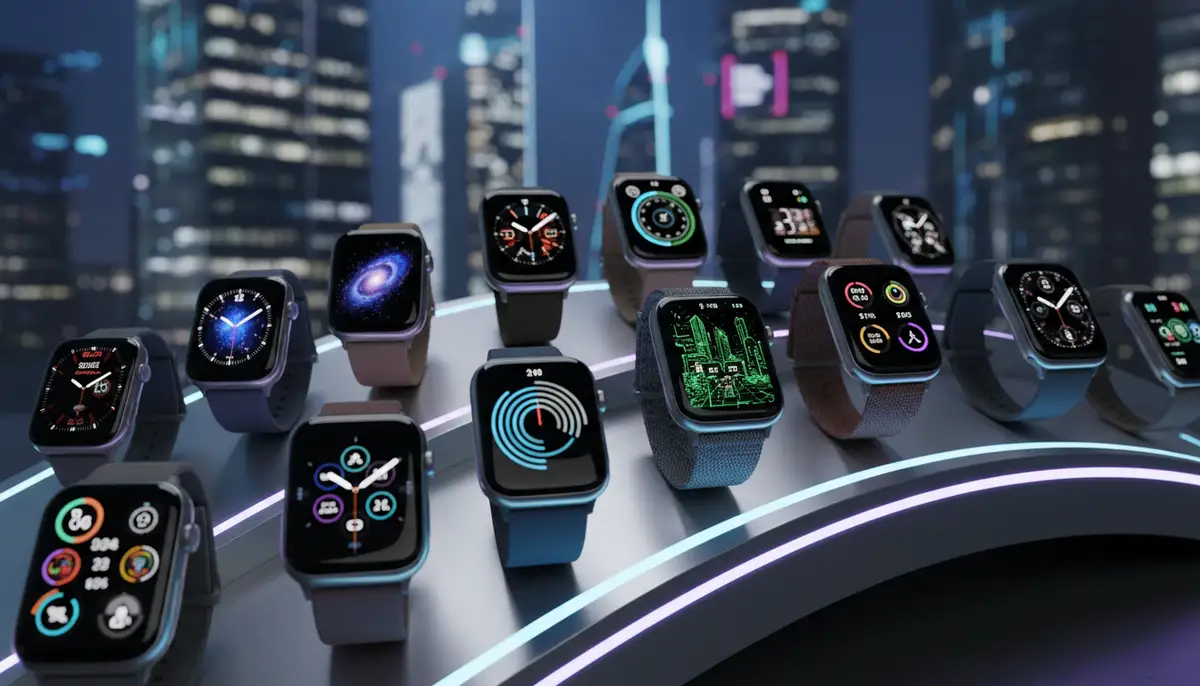
While G-SHOCK watches offer robust and reliable timekeeping, the world of digital time display extends far beyond traditional wristwatches. For those who appreciate customizing their time-telling experience, smartwatches offer unparalleled flexibility. This is where platforms like WatchMaker truly shine, providing a vast repository of thousands of watch faces for Apple Watch and Wear OS devices.
If you enjoy the precision of setting your G-SHOCK but crave more personal expression, exploring custom watch faces for your smartwatch is a natural next step. Imagine having a different watch face for every mood, outfit, or occasion. You can find everything from minimalist designs to complex, data-rich displays. For those looking for the best faces for Apple Watch, WatchMaker offers an incredible selection.
The ability to personalize your watch's appearance and functionality is a significant draw for smartwatch users. While G-SHOCK focuses on durability and core timekeeping, platforms like WatchMaker, along with other industry solutions such as Pujie Black, amoledwatchfaces.com, and facer.io, lead the way in digital watch face customization. WatchMaker, in particular, stands out with its extensive community and tools for creating your own unique designs.
Whether you're looking for a watch face that integrates weather information, fitness trackers, or simply a unique aesthetic, the options are limitless. After mastering how to change G Shock time, perhaps your next adventure will be diving into the world of customizable smartwatch faces. You can easily download watch faces from our extensive collection and transform your smartwatch experience.
Conclusion: Mastering Your G-SHOCK's Time
You now have a comprehensive understanding of how to change G Shock time, regardless of your specific model. From the basic digital adjustments to synchronizing analog hands and leveraging advanced features like World Time or Multi-Band 6, you're equipped to keep your G-SHOCK perfectly accurate. Remember the key steps: hold 'Adjust,' navigate with 'Mode,' and change values with 'Reverse' and 'Forward.' These simple actions unlock the full potential of your rugged timepiece.
Regularly checking your time settings, especially when traveling or during DST changes, will ensure your G-SHOCK remains a reliable companion. Don't hesitate to consult your watch's manual for model-specific details, but this guide provides the foundational knowledge you need. Mastering how to change G Shock time is a valuable skill that enhances your ownership experience.
Whether you stick with the classic G-SHOCK experience or explore the vast customization options for smartwatches with platforms like WatchMaker, accurate timekeeping remains at the heart of it all. Enjoy the precision and durability your G-SHOCK offers, always knowing that you have the power to keep it perfectly on schedule.
Related Posts

The Watch Face Mistake Almost Every New Garmin Owner Makes
There's a predictable arc to owning a new Garmin. Day one, you install a watch face that shows everything: heart rate, steps, battery, weather, two time zones,...

The Ultimate Apple Watch Strap Guide: Find Your Perfect Fit & Style in 2025
Introduction: Your Essential Apple Watch Strap Guide for 2025 Your Apple Watch is more than just a gadget. It's a personal statement, a fitness tracker, and a...